
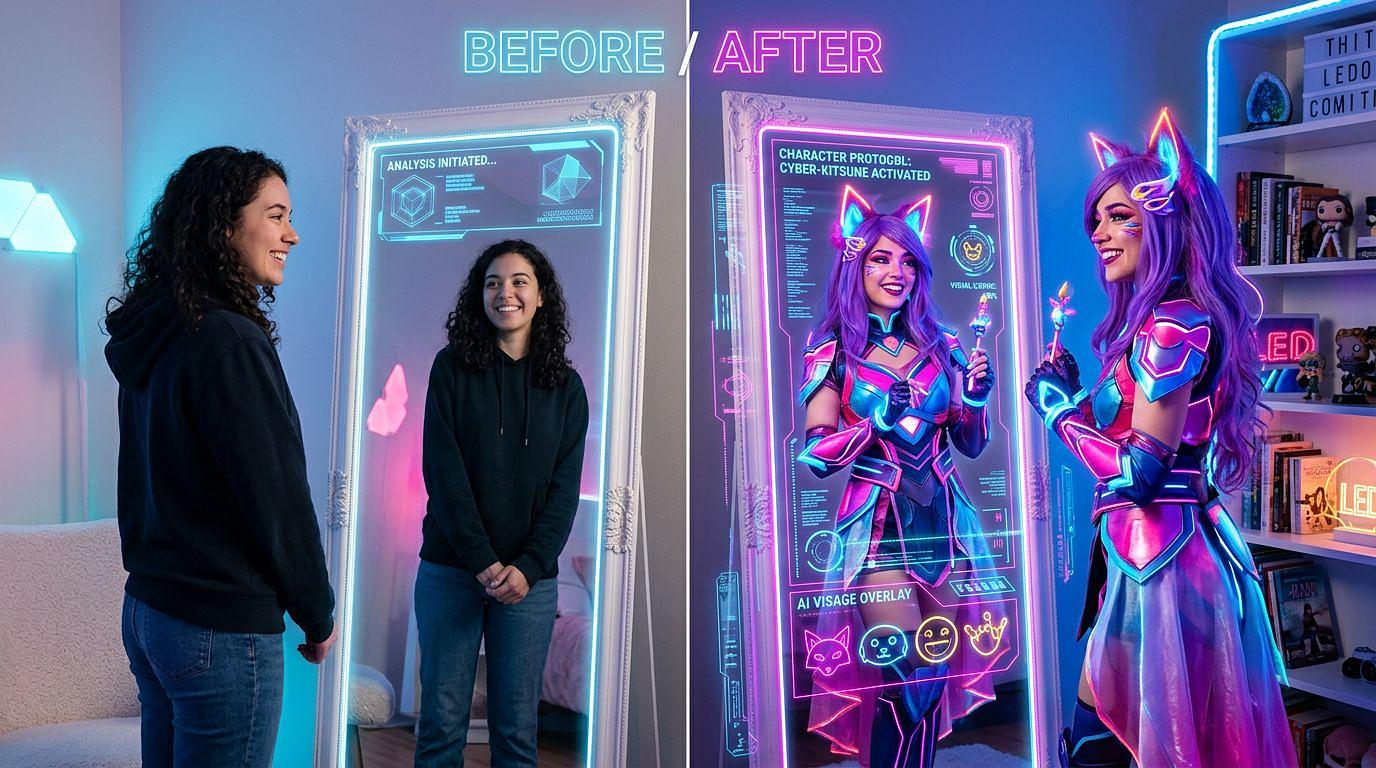
There's a specific kind of frustration that every cosplayer knows. You find the perfect character. You spend 45 minutes comparing costumes across Amazon, Etsy, and AliExpress. You pick one. You wait two weeks for shipping. You open the box — and it's just not right. The orange is the wrong shade. The wig sits weird on your head. The whole thing just doesn't look like you.
That's not bad luck. That's a structural problem with how costume buying works online: you're choosing based on how it looks on someone else.
AI virtual try-on exists specifically to fix this. Here's how it works and how to get the most out of it.
What AI cosplay try-on actually does (and doesn't do)
A proper AI try-on isn't a face swap app or a simple overlay filter. It uses image generation to realistically render a costume onto your specific photo — adjusting for lighting, skin tone, facial structure, and proportions. When it works well, the result is a genuinely useful preview: you can see whether a color palette clashes with your complexion, whether a hairstyle suits your face shape, and whether the overall aesthetic reads the way you want it to.
What it can't do: predict exact fabric quality, confirm precise sizing, or replace trying something on physically. Think of it as a confident shortlist tool, not a guarantee. Use it to narrow 20 options down to 3, then research those 3 carefully before buying.
How to use CostumePlay AI step by step
1. Browse the /looks library. Head to costumeplay.ai/looks and find the category closest to what you're planning — costumes, makeup looks, outfits, or specific characters. Each category has subcategories with curated templates.
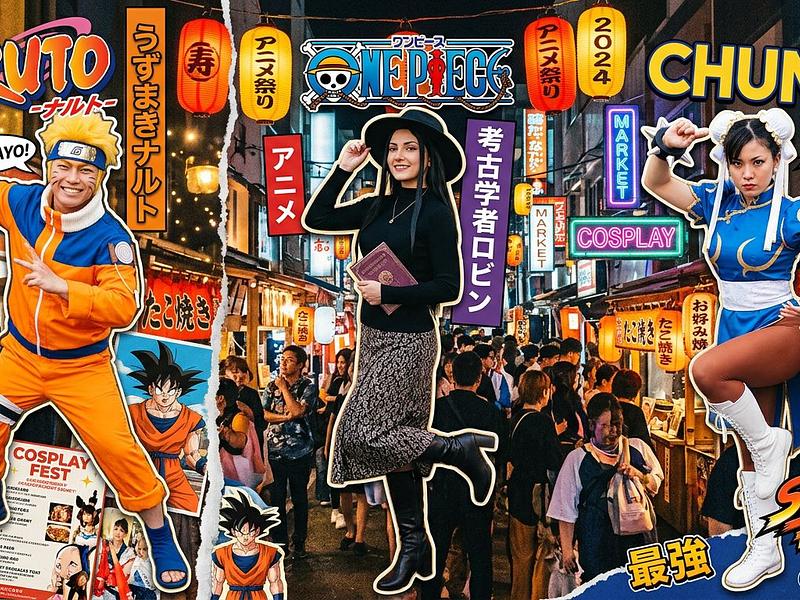
2. Pick a template. Most subcategories have 5–15 templates, each representing a specific variation of the look. For a character like Naruto, you might have the classic orange jumpsuit, the Sage Mode version, the adult Hokage look, etc. Pick the one closest to your goal.
3. Upload your photo. Use a clear, well-lit front-facing photo. Natural light works best — ring lights are fine too. Avoid heavy shadows across your face and skip photos with busy backgrounds. The AI reads your face most accurately in simple, even lighting.
4. Generate and assess. The render takes about 15–20 seconds. When it comes back, look critically: Does the color palette work with your skin tone? Does the hairstyle flatter your face shape? Try a second template if the first doesn't land — small variations in the template can make a significant difference in how a look reads on your specific features.
5. Shop the look if it works. Every template on CostumePlay AI includes Amazon links to the specific products used to build that look. If you like what you see, you can shop directly from the page — no searching required.
The categories worth exploring first
Some looks are particularly valuable to try before you buy, because the gap between "looks good on someone else" and "looks good on me" is especially wide:
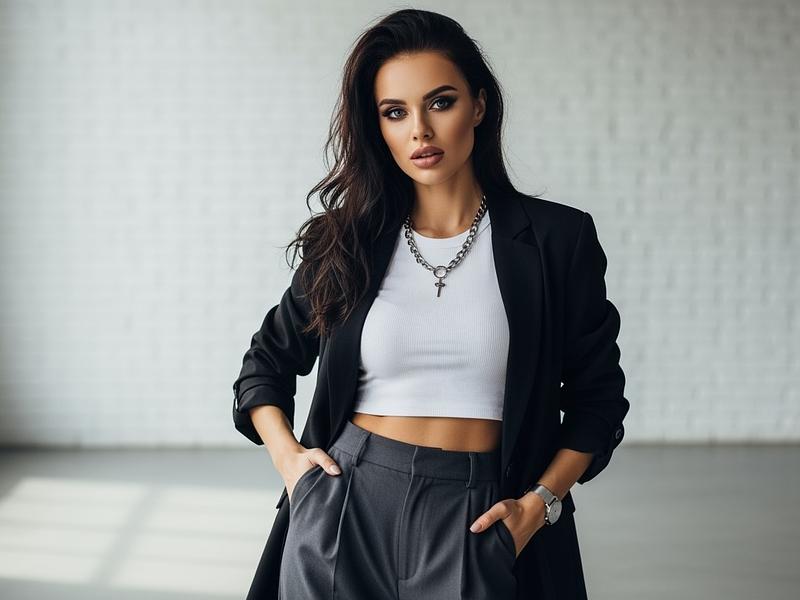
Goth makeup — dark lip colors and heavy eye looks interact very differently with different skin tones and undertones. What reads as editorial on one person can look flat or harsh on another. Worth trying several variations before committing to any products.
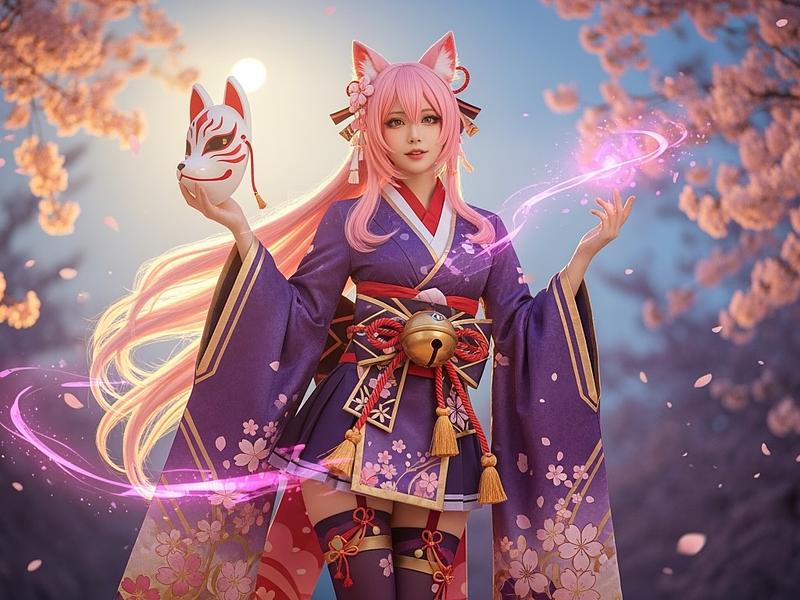
Anime characters with bright hair — neon orange, electric blue, acid green. These colors are striking in illustrations and often jarring on real people. AI try-on helps you find the ones that work specifically for you rather than buying a wig and hoping.
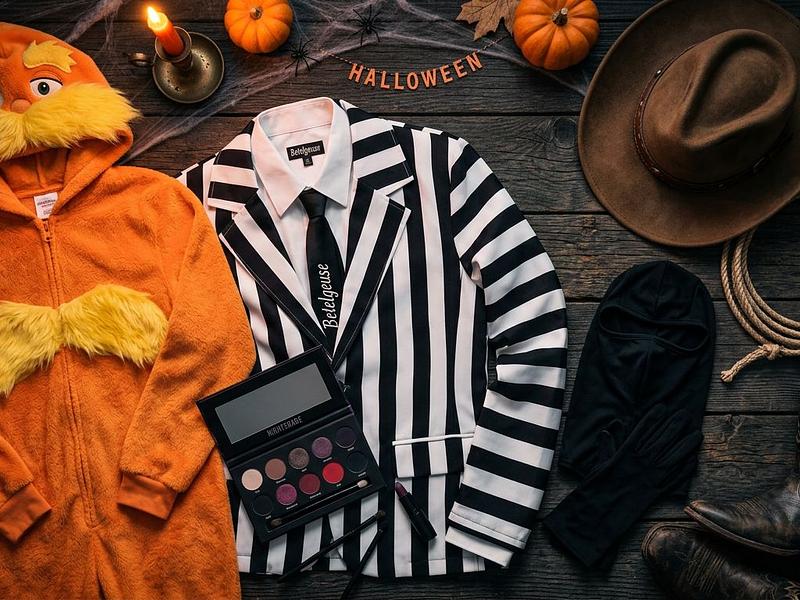
Full costume sets above $80 — Lorax, Beetlejuice, detailed cosplay. Any time you're spending real money, spend 20 seconds on a try-on first.
Western and cowgirl/cowboy outfits — these have become genuine fashion, not just costume. The difference between a cowgirl outfit that looks intentional vs. costume-y often comes down to the specific combination of hat, boots, and fringe — and that's exactly what try-on helps you nail.
Getting the most out of free credits
New CostumePlay AI accounts come with free credits — enough to do a meaningful amount of exploring before you decide whether to subscribe. A few things that help you get more value from each generation:
- Use the same base photo consistently so you can compare results fairly across different looks
- Try 2–3 templates per character/aesthetic rather than just one — results vary meaningfully between variations
- Generate the options you're seriously considering buying, not every look you find interesting
Frequently asked questions
Does it work for all skin tones? Yes — this was a priority in how the templates were built. The try-on is designed to work across a full range of skin tones. Some characters with very specific color palettes will always be a closer match for some people than others, but the try-on will show you this accurately rather than hiding it.
What makes a good photo for try-on? Front-facing, even lighting, plain or simple background, no glasses if possible. Passport-photo style shots work extremely well. The model reads your face structure most accurately when it's clearly lit and not obscured.
How is this different from just using a filter on Instagram? Instagram filters overlay a generic effect on everyone equally. AI try-on generates a unique result based on your specific face — the output looks different on you than on anyone else who tries the same template, because it's responding to your actual features.
Can I try looks that aren't in the library yet? Not yet via the standard interface — but the library is actively expanding based on trending searches. If there's a specific character or aesthetic you want to see, the new content usually follows within a few weeks of a trend appearing.
Is there a mobile app? The site is mobile-optimised and works well on any phone browser. A dedicated app may come later — for now, mobile web works for the full experience.
What happens to my photo after I generate a try-on? Photos are processed for try-on generation and are not used to train models or shared publicly.
Ready to try it? Browse the full library at costumeplay.ai/looks — no credit card needed to start.
.jpg)